
1 · Create a branch
Create a branch in the translation editor. Your edits stay on the branch until you merge.
A branch is a safe copy of your translations. Make changes there, then merge them into Main (the live version) when they’re approved.
Navigation
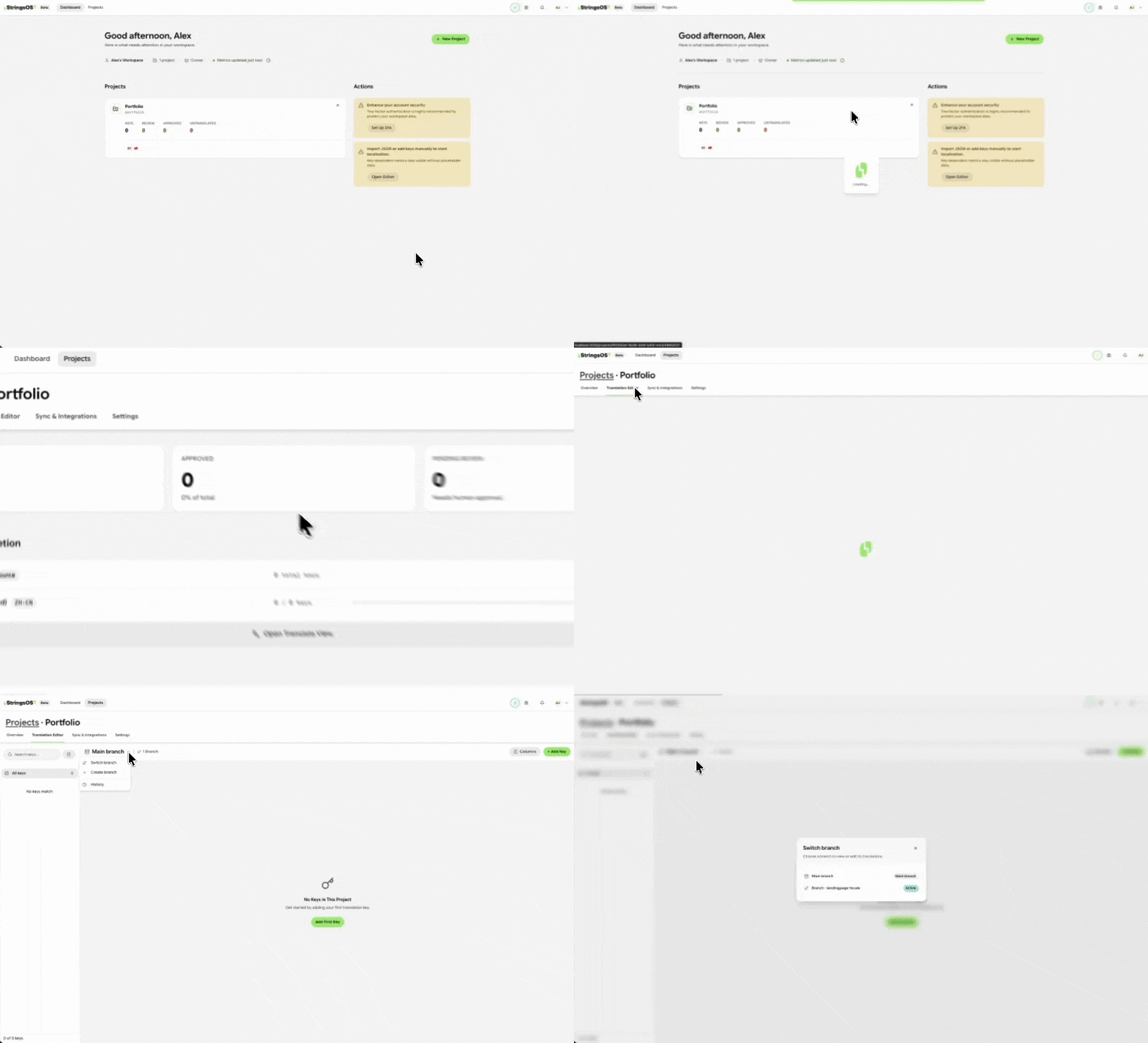
Use the branch switcher in the translation editor to create or change branches.
How it works
Create a branch in the translation editor. Your edits stay on the branch until you merge.
Add text, edit wording, and translate. Every change is tracked.
If Main changed while you worked, bring those changes in. You decide what to accept.
Ask a teammate to review. If you edit after they approve, they’ll need to review again.
Once it’s approved and up to date, merge it into Main. The merge is saved in the history.
Like branches in Figma or Git, your branch starts as a copy of Main. New text added to Main doesn’t appear on your branch automatically. It waits in Update from Main until you choose to bring it in. When you merge, only your changes go to Main. Anything you didn’t touch is never removed.
Update from Main
When Main has changed, a banner appears above your text. Open Update from Main to see every change, grouped by type. Only real conflicts need a decision. New text is a simple add-or-skip. Choose everything first, then click Apply updates. Nothing changes until you do.
Someone added text to Main after you branched. It stays hidden until you choose Add to branch (recommended).
The same key was renamed differently on Main and on your branch. Keep Main’s name, keep yours, or choose a new one.
Main and your branch changed the same text. Compare both versions side by side and pick one.
Main removed something you edited. Accept the removal, or keep your version.
Both sides created a key with the same name. Keep Main’s, keep yours, or rename one.
Branches
Branches let several people or projects work at the same time without getting in each other’s way. Create a branch from Main, do your translation work, get it reviewed, then merge the final text back into Main.
Staying up to date
If Main changed while you were working, update your branch so you’re working with the latest text. Update from Main brings in new text and updated wording from Main.
Fixing clashes
A conflict happens when the same text was changed differently on Main and on your branch. StringsOS highlights each one and shows both versions next to each other, so you can choose which to keep before finishing the update.
In a project with two or more members, open a pull request and ask for a review. You can’t approve your own. If you edit after approval, it needs review again. You can’t open a pull request while your branch is behind Main or has conflicts.
To merge, you need an up-to-date approval from another member, no requested changes, no conflicts, and a branch that’s caught up with Main. The merge is recorded in the history. Solo projects can merge directly, but the up-to-date and conflict checks still apply.
The branch switcher shows only active branches. Merged and archived ones live in the History panel, where you can show or hide them.
Branch, review, and merge translations the same way you handle code.
Free during beta · No credit card required