
Easy editing
Edit in a table, or focus on one piece of text at a time. Everything works from the keyboard.
Where you edit, review, and approve translations. Every change is tracked.
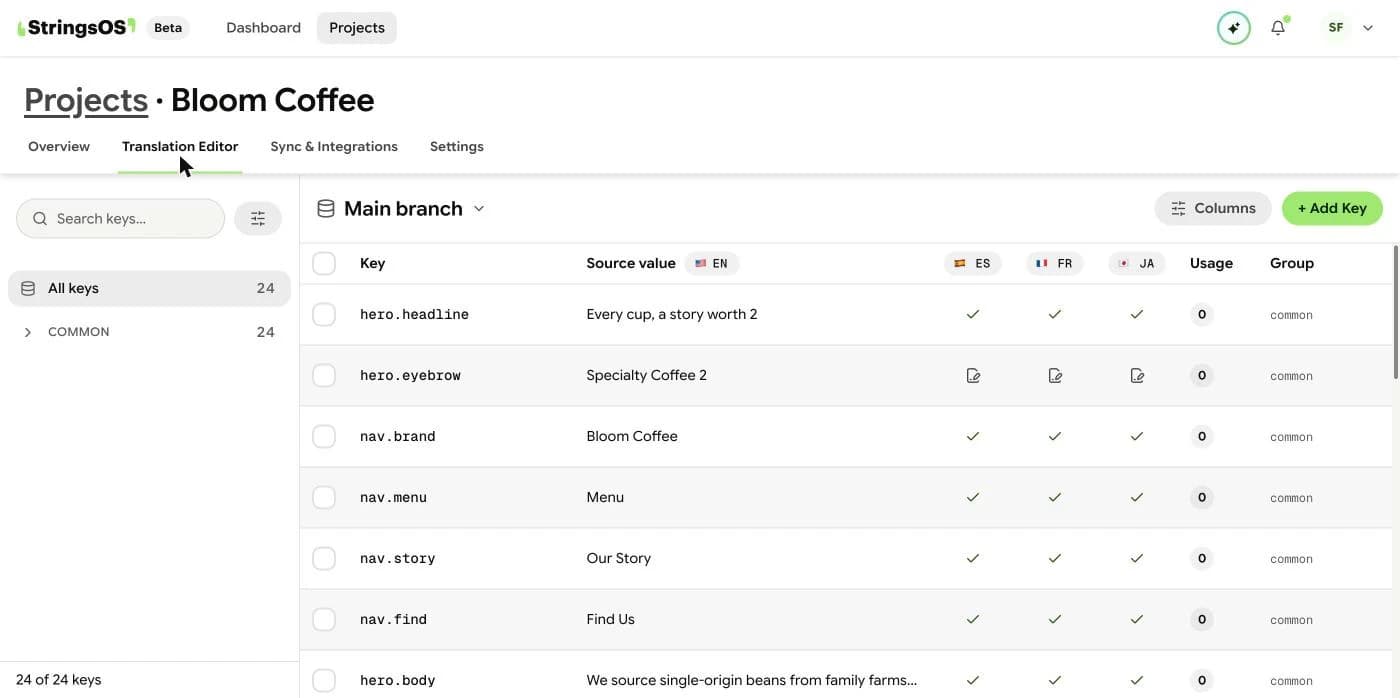
Navigation
Open a project, then choose the editor.
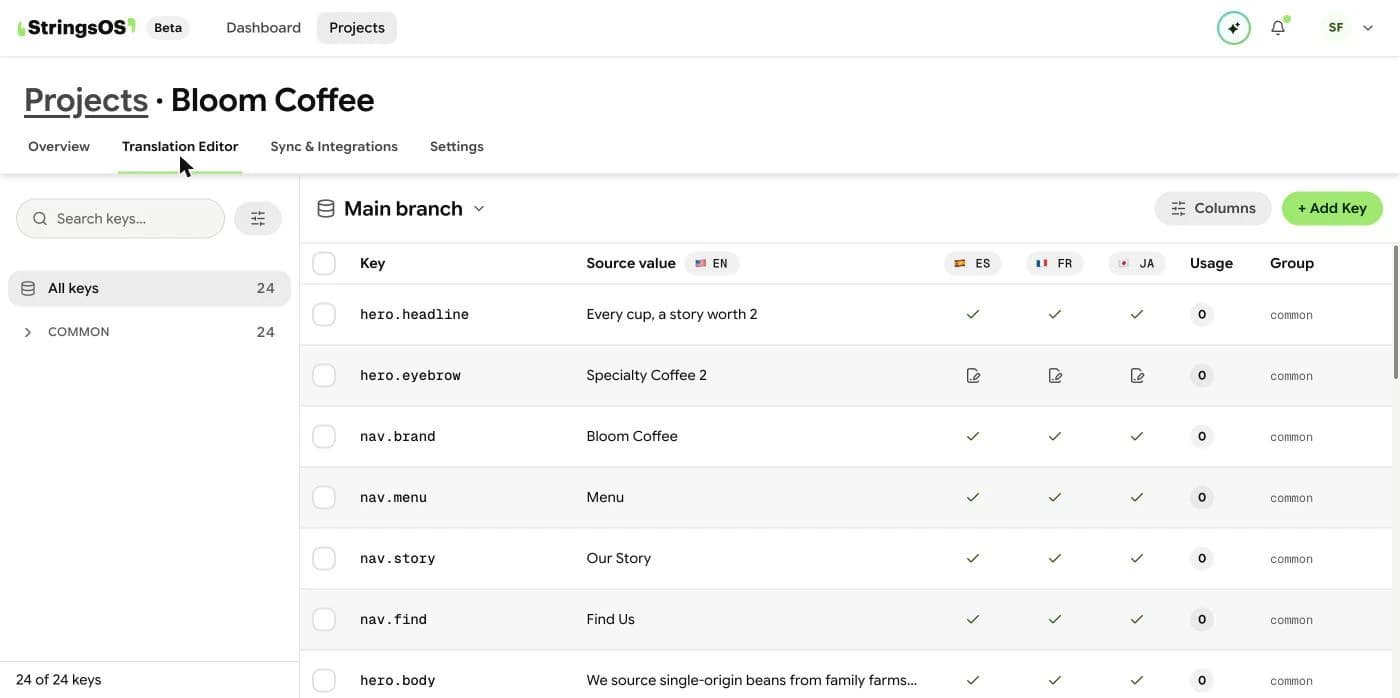
Workspace
Edit in a table, or focus on one piece of text at a time. Everything works from the keyboard.
Every translation is Untranslated, Draft, Needs Review, Approved, or Override.
AI suggestions and automatic checks appear right next to where you type.
Every edit, approval, and AI suggestion is tracked. Restore an earlier version with one click.
An AI suggestion starts as a Draft. Once a person edits it, it becomes Needs Review. Only people with review access can mark it Approved. If a developer changes the text directly in GitHub, StringsOS shows it as an Override.
The editor
This is where most of the work happens. You’ll see your original text on the left and the translation on the right, so you always have context. You can move between fields with your keyboard, without reaching for the mouse.
Statuses
Every piece of text has a status. Untranslated: no work yet. Draft: a first attempt, often from AI. Needs Review: a person has edited it and it’s waiting for approval. Approved: ready to go live. Override: it was changed outside StringsOS, for example directly in GitHub.
History
Every edit is saved. If someone makes a mistake, or a developer overwrites something by accident, open its history and restore an earlier version with one click.
Learn how to add the text you’ll be translating and keep it tidy.
Open the translation editor and try it.
Free during beta · No credit card required